Инструкция для Hyundai H-LCDVD713
 1
 2
 3
 4
 5
 6
 7
 8
 9
 10
 11
 12
 13
 14
 15
 16
 17
 18
 19
 20
 21
 22
 23
 24
 25
 26
 27
 28
 29
8
9
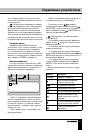
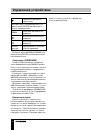
Operation
Operation
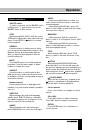
SLOW
Press SLOW button repeatedly to change
slow playback speed as follows: 1/2 => 1/4 =>
1/8 => 1/16 => normal.
SETUP
Press SETUP button to enter or exit the
system setup menu.
ZOOM
When playing DVD/VCD disc, press ZOOM
button to zoom in the picture as follows: 2x =>
3x => 4x => 1/2 => 1/3 => 1/4 => normal. In
zoom in mode, press cursor buttons to move
the picture for viewing.
REPEAT
Press REPEAT button to repeat a title,
chapter, track or the whole disc.
• When playing DVD disc, press REPEAT
button continually to repeat chapter => title =>
all => repeat off.
• When playing SVCD, VCD, CD disc, press
REPEAT button continually to repeat track =>
all => repeat off.
• When playing MP3 disc, press REPEAT
button continually to play shuffle => random =>
single => repeat one => repeat folder.
PROGRAM
• If the disc contains 2 or more tracks,
chapters or titles, set up the playing order to
your preference. Press PROGRAM button to
enter program menu.
• Press cursor buttons to navigate in the
program menu. Press number buttons to
input the number of the track, title or chapter.
If programmed tracks are over ten, select
item and press ENTER button to go on
programming. Maximum 20 programmable
items are possible.
• Use cursor buttons to move the cursor
to PLAY item. Press ENTER button to start
program playback. Press PROGRAM button to
cancel programming.
For MP3 disc, this function is not
available.
DISPLAY
Press DISPLAY button to display various info
on the current playback: title/chapter number or
time elapsed/remaining, etc.
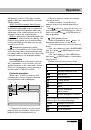
/
(Previous/Next)
• When playing DVD disc, press
button
to go to the previous chapter.
• When playing SVCD, VCD, CD disc, press
button to go to the previous track.
• When playing DVD disc, press
button
to go to the next chapter.
• When playing SVCD, VCD, CD disc, press
button to go to the next track.
/
(
Rewind/Fast forward)
Press
button repeatedly for quick rewind
search. Press
button repeatedly for quick
forward search. Search speed will increase
with each pressing: 2x => 4x => 8x => 16x =>
32x => normal.
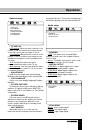
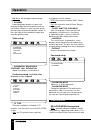
System setup
1. Press SETUP button to enter the setup
menu. In Setup menu, press SETUP button
again to quit the setup page.
2. Use / buttons to choose a setup page:
General setup, Audio setup, Video setup,
Preference page, Password setup.
3. Press button to enter the setup page
selected.
4. Use / buttons to select the option you
want to adjust.
5. Press button to enter the adjustment
list. Use / buttons to select the adjustment
and press ENTER button to confirm and
button to return to options list.
6. To return to setup page list press button
when in the option list.
The items in gray can’t be set up. The
setup is memorized and kept after power is off.
Оглавление инструкции
- Страница 1 из 30
H-LCDVD713 PORTABLE DVD PLAYER WITH 7” LCD DISPLAY Instruction manual ПОРТАТИВНЫЙ DVDПРОИГРЫВАТЕЛЬ С 7” LED-ДИСПЛЕЕМ Руководство по эксплуатации
- Страница 2 из 30
Table of contents Dear customer! Thank you for purchasing our product. For safety, it is strongly recommended to read this manual carefully before connecting, operating and/or adjusting the product and keep the manual for reference in the future. Table of contents Before you start Utilization of
- Страница 3 из 30
Before you start Utilization of the product If you want to dispose this product, do not mix it with general household waste. There is a separate collection system for used electronic products in accordance with legislation that requires proper treatment, recovery and recycling. Please contact your
- Страница 4 из 30
Before you start • All repairs and technical service should be made by qualified specialist from service centers. All images provided herein are schematic drawings of real objects and may differ from their real images. Connection Before you start connection of external devices, ensure that power of
- Страница 5 из 30
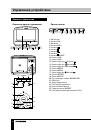
Operation Control elements Main controllers Right panel 20 1 2 7 10 3 4 8 5 6 9 16 11 21 22 23 24 25 26 1. IR sensor 2. VOL- button 3. Display 4. VOL+ button 5. button 6. button 7. button 8. button 9. SOURCE button 10. VOL- button 11. VOL+ button 12. / button 13. button/ button 14. button/ button
- Страница 6 из 30
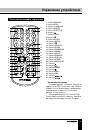
Operation Remote controller (RC) 1 16 2 17 3 18 4 19 5 20 6 21 7 22 23 8 9 10 11 24 25 26 12 13 27 14 15 28 1. SEARCH button 2. STEP button 3. Digit buttons 4. ANGLE button 5. SUBTITLE button 6. button 7. TITLE button 8. button 9. ENTER button 10. SETUP button 11. button 12. REPEAT buttons 13. SLOW
- Страница 7 из 30
Operation Button functions ON/OFF switch To switch on the unit, set the ON/OFF switch to ON position. To turn off the power set the ON/OFF switch to OFF position. STEP When playing DVD, SVCD, VCD disc, press STEP button repeatedly to play video frame by frame. Press ENTER or button to resume normal
- Страница 8 из 30
Operation SLOW Press SLOW button repeatedly to change slow playback speed as follows: 1/2 => 1/4 => 1/8 => 1/16 => normal. DISPLAY Press DISPLAY button to display various info on the current playback: title/chapter number or time elapsed/remaining, etc. SETUP Press SETUP button to enter or exit the
- Страница 9 из 30
Operation General setup GENERAL SETUP PAGE TV DISPLAY ANGLE MARK OSD LANGUAGE CLOSED CAPTIONS SCREEN SAVER LAST MEMORY • TV DISPLAY 4:3 PanScan: When the unit connects to the normal TV set, the wide-screen image shows on the full screen, but some part is cut off. 4:3 LetterBox: When the unit
- Страница 10 из 30
Operation Mix-Mono: left and right output average signal. • DYNAMIC If watching large dynamic scope movie program at night, by selecting this mode you can reduce volume to a very low level and at the same time keep the fine details sounds. In this case, this doesn’t disturb the family and keep the
- Страница 11 из 30
Operation 600 minutes of music (170 songs). And the quality of MP3 disc approximates to an audio CD disc quality. JPEG (Joint Photographic Expert Group) image compression algorithm, used all over the world and providing high level of compression of the source data. Any graphics editor may edit
- Страница 12 из 30
Operation/General information Cursor buttons Move zoom center Select EXIT MENU item and press ENTER button to exit. Depending on file volume and encoding, some delay is possible when changing modes or passing to the next menu item. USB/SD/MMC operations Insert a USB drive in the USB port, then
- Страница 13 из 30
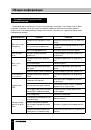
General information Troubleshooting Below is a table describing simple measures that can help you eliminate most problems likely to emerge when this unit is in use. If below measures do not help, turn to a service center or to the nearest dealer. Symptom No sound No image Disc cannot be read Remote
- Страница 14 из 30
General information Specifications Appearance Unit dimensions Gift Box dimensions Net/Gross weight Display Display format Compatibility Supports Formats of playback Audio Built-in Dolby Digital decoder Video Color system Connectors Audio-video out Earphone jack Coaxial out Functions Children lock
- Страница 15 из 30
Содержание Уважаемый покупатель! Благодарим Вас за покупку нашего изделия. Чтобы понять, как правильно и безопасно пользоваться приобретенным устройством, рекомендуется тщательно изучить настоящее руководство перед подключением и эксплуатацией изделия. Сохраняйте руководство для использования в
- Страница 16 из 30
Перед началом эксплуатации Утилизация изделия Если вы желаете утилизировать данное изделие, не выбрасывайте его вместе с обычным бытовым мусором. Существует отдельная система сбора использованных электронных изделий в соответствии с законодательством, которая предполагает соответствующее обращение,
- Страница 17 из 30
Перед началом эксплуатации ной некорректной работы устройства. • Устройство должно находиться в сухом и проветриваемом месте. Исключайте нахождение устройства вблизи нагревательных приборов, не подвергайте воздействию солнечного света, механической вибрации, влажности и пыли. • Не используйте для
- Страница 18 из 30
Управление устройством Элементы управления Основные органы управления Правая панель 20 1 2 7 10 3 4 8 5 6 9 16 11 12 13 17 18 14 15 18 19 21 22 23 24 25 26 1. ИК-датчик 2. Кнопка VOL3. Дисплей 4. Кнопка VOL+ 5. Кнопка 6. Кнопка 7. Кнопка 8. Кнопка 9. Кнопка SOURCE 10. Кнопка VOL11. Кнопка VOL+ 12.
- Страница 19 из 30
Управление устройством Пульт дистанционного управления 1 16 2 17 3 18 4 19 5 20 6 21 7 22 23 8 9 10 11 24 25 26 12 13 27 14 15 28 1. Кнопка SEARCH 2. Кнопка STEP 3. Кнопки с цифрами 4. Кнопка ANGLE 5. Кнопка SUBTITLE 6. Кнопка 7. Кнопка TITLE 8. Кнопка 9. Кнопка ENTER 10. Кнопка SETUP 11. Кнопка
- Страница 20 из 30
Управление устройством Функции кнопок Переключатель ON/OFF Для включения питания устройства установите переключатель ON/OFF на правой панели в положение ON. Чтобы отключить питание, установите переключатель в положение OFF. STEP При воспроизведении DVD, SVCD, VCD диска нажимайте кнопку STEP для
- Страница 21 из 30
Управление устройством , чтобы начать воспроизведение. Во время воспроизведения нажмите эту кнопку для приостановки воспроизведения. Кнопки курсора Используйте кнопки курсора для перемещения по меню. VOL+/VOL- Нажимайте кнопки VOL+/VOL- для увеличения или уменьшения уровня громкости звука. ENTER
- Страница 22 из 30
Управление устройством предыдущему треку. • При воспроизведении DVD диска нажмите кнопку для перехода к следующей главе. • При воспроизведении SVCD, VCD, CD дисков нажмите кнопку для перехода к следующему треку. / (назад/вперед) Нажимайте кнопку для ускоренного воспроизведения назад. Нажимайте
- Страница 23 из 30
Управление устройством устройство включено и диск не воспроизводится в течение нескольких минут, то на экране появляется движущаяся заставка и через несколько минут устройство переходит в спящий режим. • Последняя память Если эта функция включена, устройство может запомнить время, на котором
- Страница 24 из 30
Управление устройством параметры в соответствии с вашими предпочтениями. Страница настройки предпочтений СТРАНИЦА ПРЕДПОЧТЕНИЙ Страница настройки пароля СТР. УСТАНОВКИ ПАРОЛЯ РЕЖИМ ПАРОЛЯ ПАРОЛЬ СИСТЕМА ТВ ЗВУК СУБТИТРЫ МЕНЮ ДИСКА ОГРАНИЧЕНИЕ ПО УМОЛЧАНИЮ • Система ТВ Данное устройство подходит для
- Страница 25 из 30
Управление устройством стью. Данный формат позволяет размещать полнометражные фильмы на одном компакт-диске. Производитель гарантирует нормальное воспроизведение только лицензионных дисков.Воспроизведение некоторых AVIфайлов может оказаться невозможным в зависимости от их конфигурации и параметров,
- Страница 26 из 30
Управление устройством отражение картинки по горизонтали Выберите пункт ПРОДОЛЖЕНИЕ и нажмите кнопку ENTER для перехода ко второй странице меню: ZOOM изменение масштаба изображения увеличение масштаба изображения уменьшение масштаба изображения Кнопки курсора перемещение по увеличенному изображению
- Страница 27 из 30
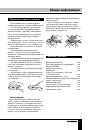
Общая информация Обращение с компакт-дисками • Не вставляйте в лоток для загрузки компакт-диска ничего, кроме компакт-диска. • Не используйте диски с трещинами, отколотыми краями, деформированные диски или диски с другими повреждениями, поскольку такие диски могут вызвать искажение звука, шумы или
- Страница 28 из 30
Общая информация Руководство по устранению неисправностей Ниже приводится таблица, в которой описаны простые меры, способные помочь Вам устранить большую часть проблем, могущих возникнуть при использовании данного устройства. Если нижеуказанные меры не помогли, обратитесь в сервисный центр или к
- Страница 29 из 30
Общая информация Технические характеристики Внешний вид Размеры устройства Размеры упаковки Вес нетто/брутто Дисплей Формат дисплея Совместимость с форматами Поддержка носителей Воспроизведение форматов Аудио Встроенный декодер Dolby Digital Видео Система цветности Терминалы Аудиовидеовыход Выход
- Страница 30 из 30